
AdOperator lets you build your own retargeting audiences and use them in Popunder, Push, and In-Page Push campaigns. By collecting visitors who have already interacted with your website, you can run targeted campaigns, tailor your creatives and offers to different segments, and significantly improve overall performance. This guide explains how audience retargeting works in AdOperator and how to set it up.
What Is Retargeting?
Retargeting is a digital advertising technology that allows you to target ads to users who have previously visited your website or completed a specific action.
For example, you can reach people who:
— showed interest in your products or services;
— registered an account;
— made a deposit or purchase;
— subscribed to a newsletter;
— completed any other action you choose to track.
Such users are often more likely to engage with your ads than a completely new audience. A visitor who left the website without registering may need a different offer or call to action than a client who already has an account or has completed a purchase.
How to Create and Use Retargeting Audiences
In AdOperator, you can set up retargeting audiences using a tracking pixel. Where you install it determines which users are added to your audience.
A tracking pixel is a small JavaScript code that identifies visitors who meet the conditions you’ve defined and adds them to a specific list. In AdOperator, audience matching is based on browser fingerprint technology. This means the pixel doesn’t keep users’ names, email addresses, cookies, or other personal data. It is used solely to build advertising audiences for retargeting campaigns.
Setting up an audience using the pixel takes just three steps.
Step 1. Create New Audience
Log in to your AdOperator account and open the Audiences section.
If the section isn’t available in your account, please contact your account manager or our support team to enable it.
To create a new audience, enter a name and click “Create Audience”. AdOperator will generate a unique Audience URL, which you need to paste into your website in the next step.
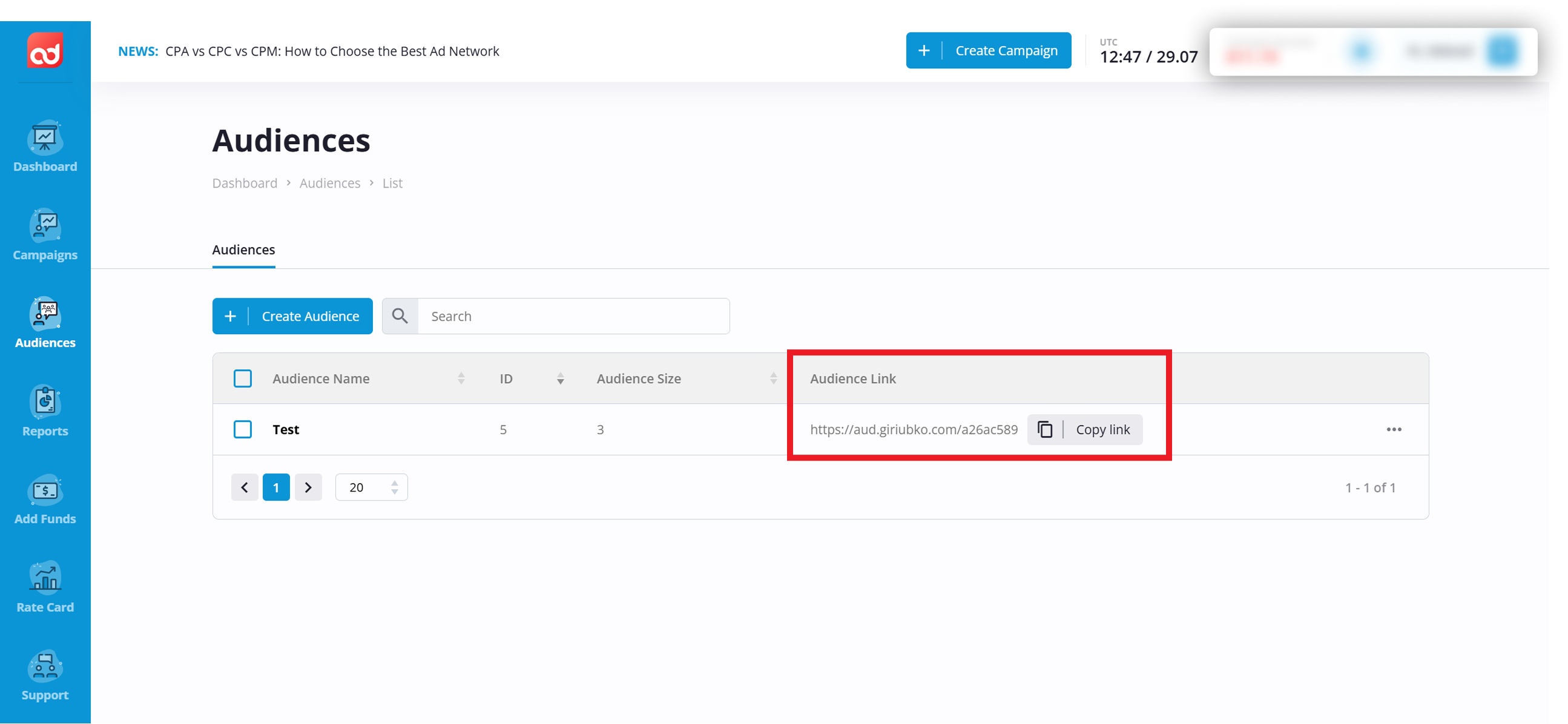
Step 2. Install the Tracking Pixel and Collect Your Audience
Copy the generated URL and convert it into a JavaScript snippet using your preferred tool (ChatGPT, Claude, or another AI coding assistant) before adding it to your website. Once the JavaScript code is installed, AdOperator automatically starts building the audience.
<script>
(function () {
    var audienceUrl = "<<your pixel url here>>";
    function fireAudiencePixel() {
        try {
            // Best option for background tracking on page load/unload
            if (navigator.sendBeacon) {
                navigator.sendBeacon(audienceUrl, "");
                return;
            }
            // Fallback if sendBeacon is unavailable
            fetch(audienceUrl, {
                method: "GET",
                mode: "no-cors",
                credentials: "include",
                keepalive: true
            }).catch(function () {});
        } catch (e) {}
    }
    // Fire once on thank-you page load
    fireAudiencePixel();
})();
</script>
Where you paste the tracking pixel determines which users will be collected.
Collect all website visitors
If you install the tracking pixel in your website’s <head> section or before the closing </body> tag, everyone who visits your website will be added to the list. This option is useful when you want to gather all website visitors.
Collect a specific audience
You can also paste the tracking pixel on a page that people reach after completing a specific action, such as:
— successful registration;
— deposit confirmation;
— newsletter subscription;
— button clicking.
Visitors who reach that page or trigger the event will be collected in a separate audience. For example, if the tracking pixel is placed inside a registration success popup, only registered users will be collected.
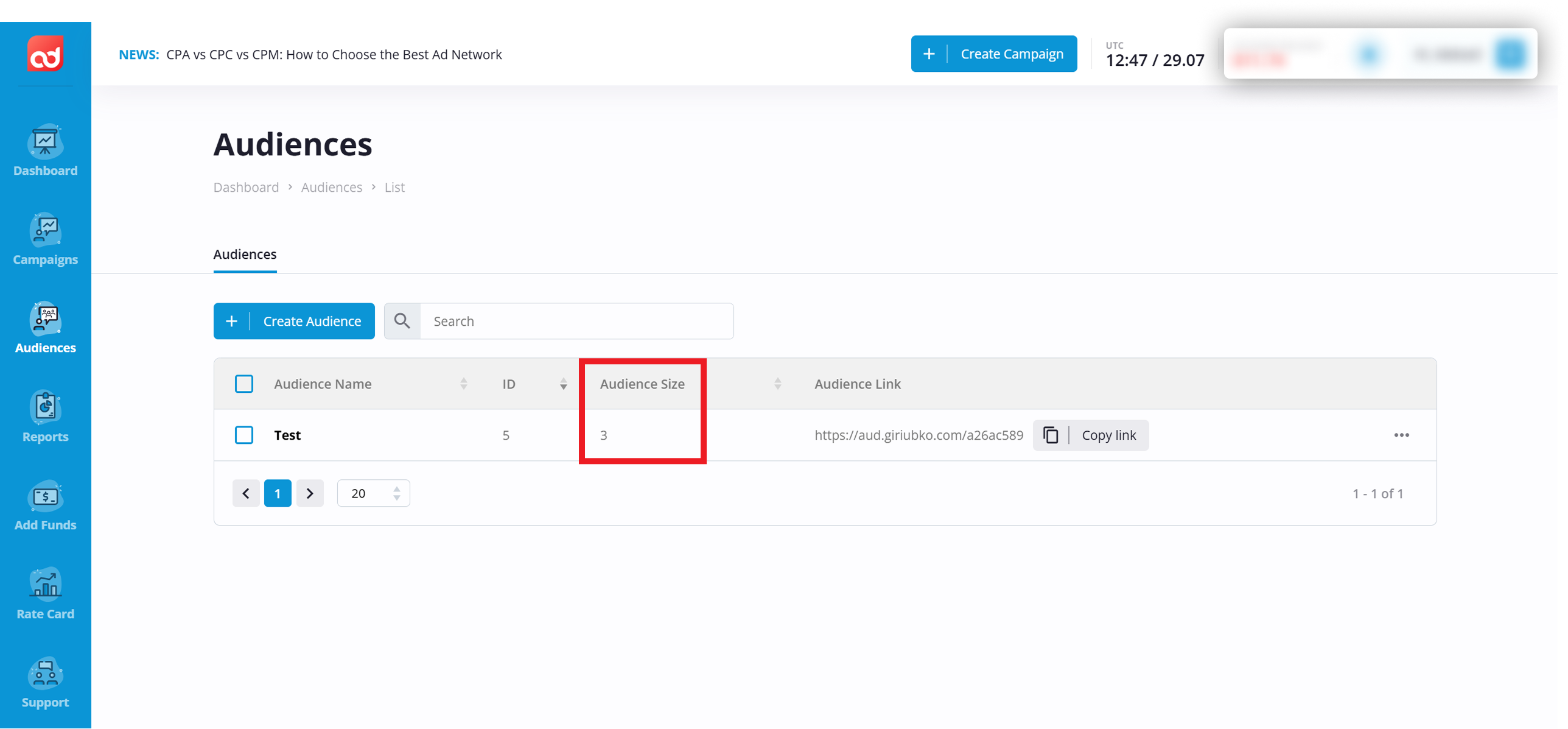
As visitors are added, the Audience Size column shows how many people have already been collected. The list continues to grow as more users meet the exact conditions.
Step 3. Launch a Retargeting Campaign
Once your audience is large enough, you can launch a retargeting campaign. During setup, choose the required audience in the Retargeting Tag/Pixel Audience field:
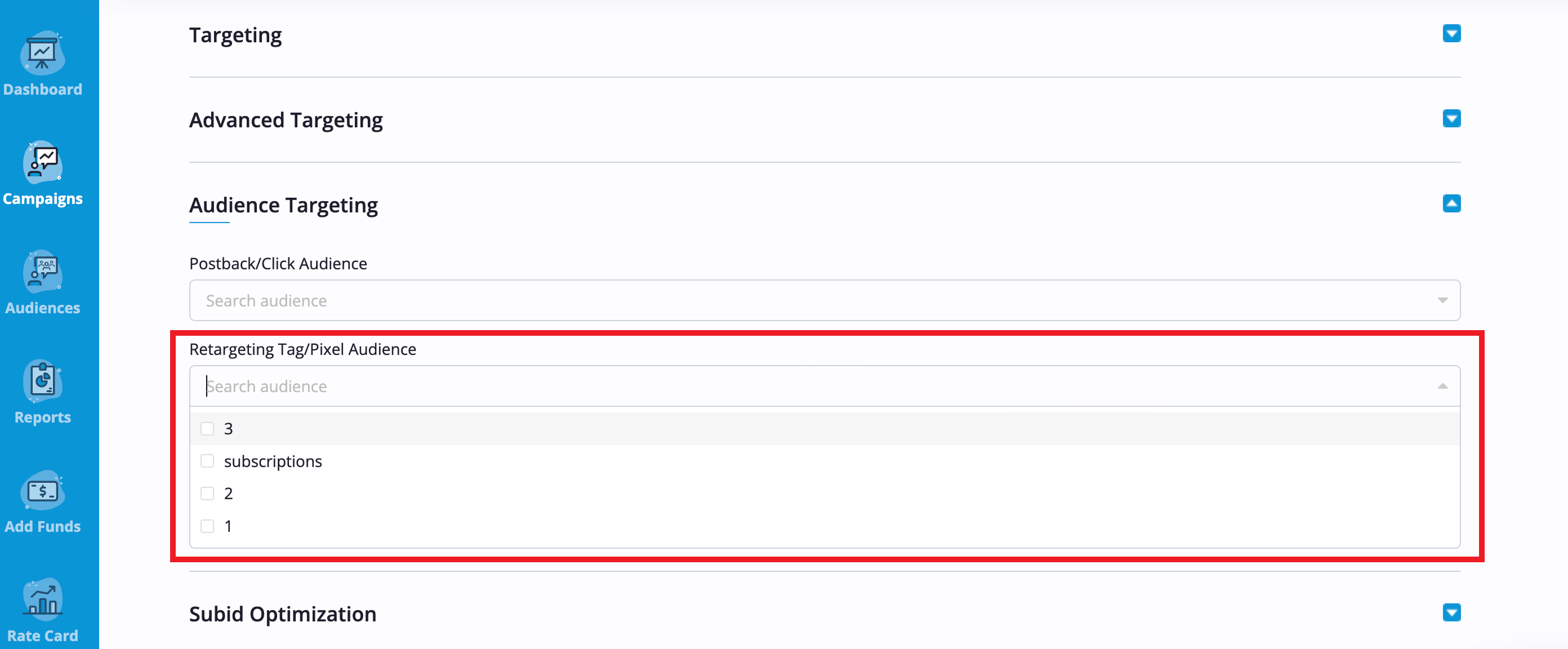
Your ads will then be shown only to users included in this selected group.
How to Improve Retargeting Campaign Performance
You can build multiple audiences for different segments and create a separate campaign for each one. Retargeting is available across all AdOperator ad formats: Popunder, Push, and In-Page Push. So you can choose the format that best fits your goals.
When preparing retargeting campaigns, adapt your creatives to each audience. A reminder, a follow-up offer, or a more relevant call to action based on users’ previous interactions with your website is often more effective than using the same messages for everyone. Tailoring your campaigns to selected visitors helps deliver more relevant ads, encouraging users to return and convert.
Frequently Asked Questions
Does retargeting cost extra?
No. Creating and using retargeting audiences is included in your AdOperator account at no additional cost.
How long does it take to build an audience?
It depends on how much traffic your website receives. AdOperator starts collecting visitors as soon as the tracking pixel is installed, and you can launch a campaign whenever you consider the audience large enough.
Can I use the same tracking pixel on multiple pages?
Yes. If you want visitors from multiple pages to be added to the same segment, you can install the same tracking pixel across those pages.
If you want to build different audiences – for example, users who visited your landing page but didn’t register, users who registered but haven’t made their first deposit yet, or existing customers you want to re-engage with a special offer, upsell, or loyalty program – create separate lists for each group in AdOperator. Then paste the corresponding tracking pixel only where these people can be identified.
Do retargeting audiences expire?
Retargeting audiences are stored for 3 months. Older records are then automatically replaced with newly added users, keeping your lists up to date and profitable without any manual maintenance.